
Price + cut list + 3D + back office
Enterprise
In the appShared when we set you up
- Monthly base, 1 user included
- Add material licenses for your shops
- Add dealer licenses for your network
Your dealer closes the sale. The order arrives already entered, and each shop department gets its own cut list.
One order, from the customer back to the customer. Sample order, no real prices.
01 Your own page · For your customers
The Public page is included: a 3D page with your name on it. Every building a customer sends lands in your office as a lead.
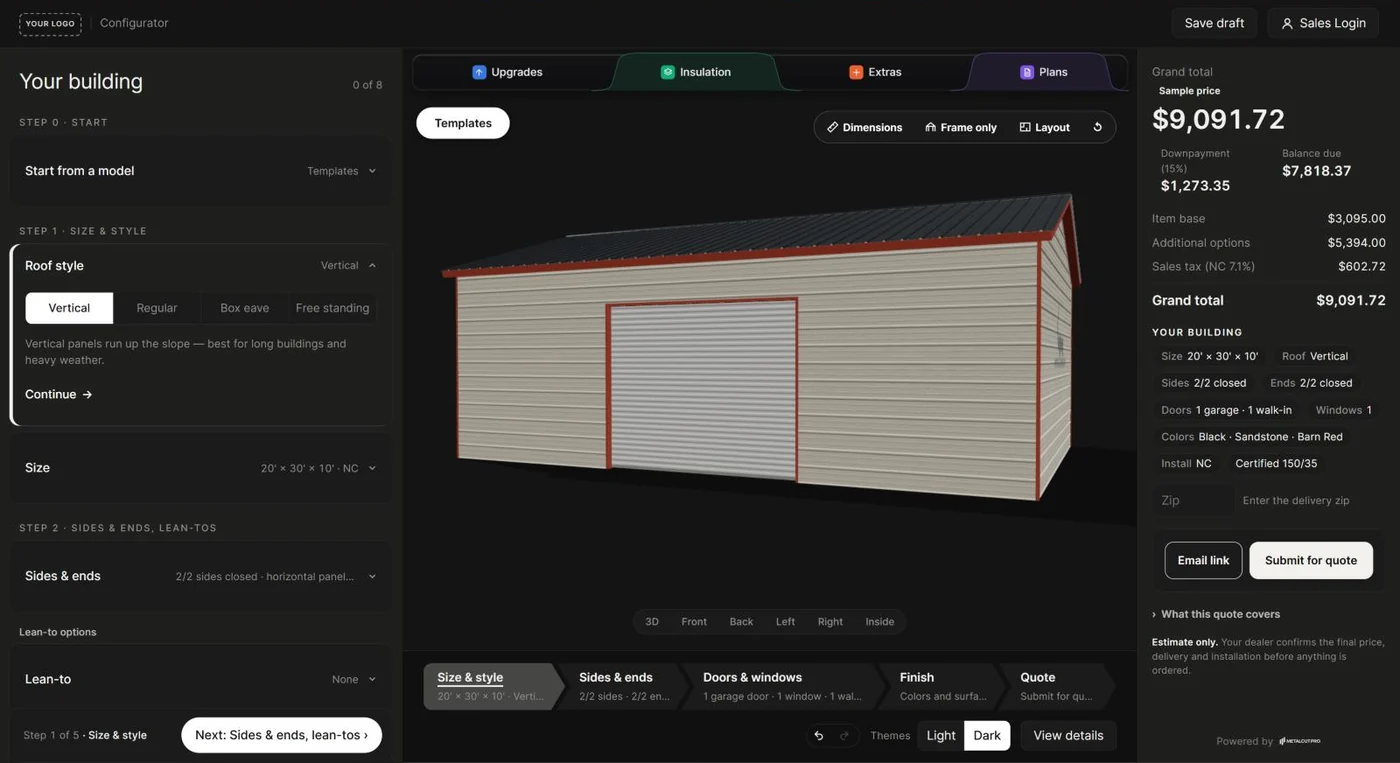
Size, roof, walls, colors, doors and windows, on a phone, a tablet or a computer.
Your brand, your building rules and your own disclaimer.
You decide if visitors see a price or send it for a quote.
Start from a template, save a draft, email the link to come back later.
The customer's building and contact go straight to your Leads.
02 Your dealers · For your dealer network
Each dealer quotes in 3D with the price list you publish for them, and sends the order to you inside the app.
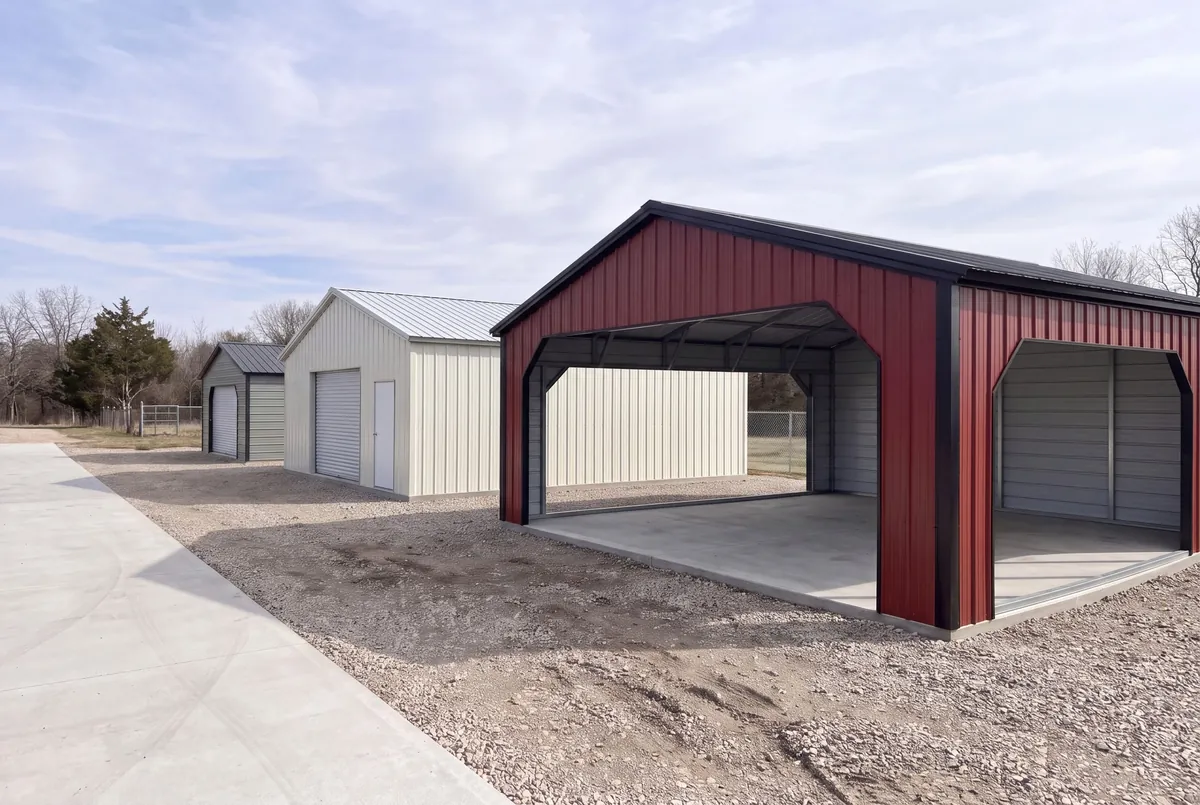
Add a dealer, send the invitation, give a license. Pause a dealer any time.
Group dealers by state or price package. Publish a list and see what changed.
Dealers quote inside your rules and with your disclaimer.
The dealer builds it in 3D and sees the price. Save the quote, print the PDF or email the link.
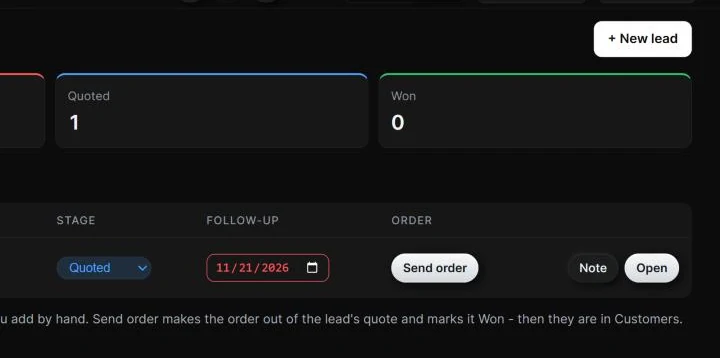
Every saved quote becomes a lead, with its stage, its notes and the next call.
When the customer buys, the dealer presses Send order. No retyping, no email chains.
The dealer can update a sent order until it goes into production, with one line of what changed.
Dealers can add the people of their company, and a bell tells them what you did with each order.
A PDF for each dealer, with the record of each order and the taxpayer ID from the W-9 you keep on file.
03 Your office · For your office
Quotes, leads, customers and orders of every dealer, in one back office.
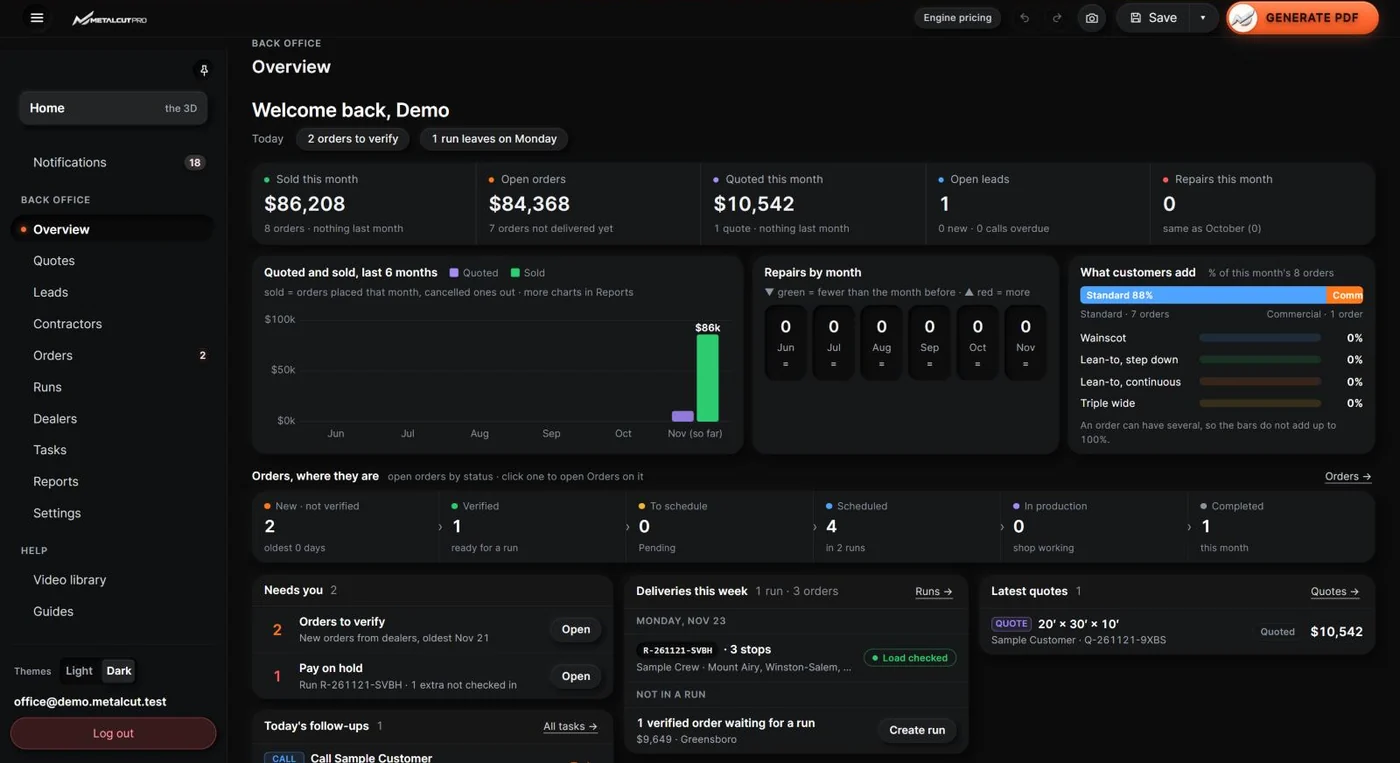
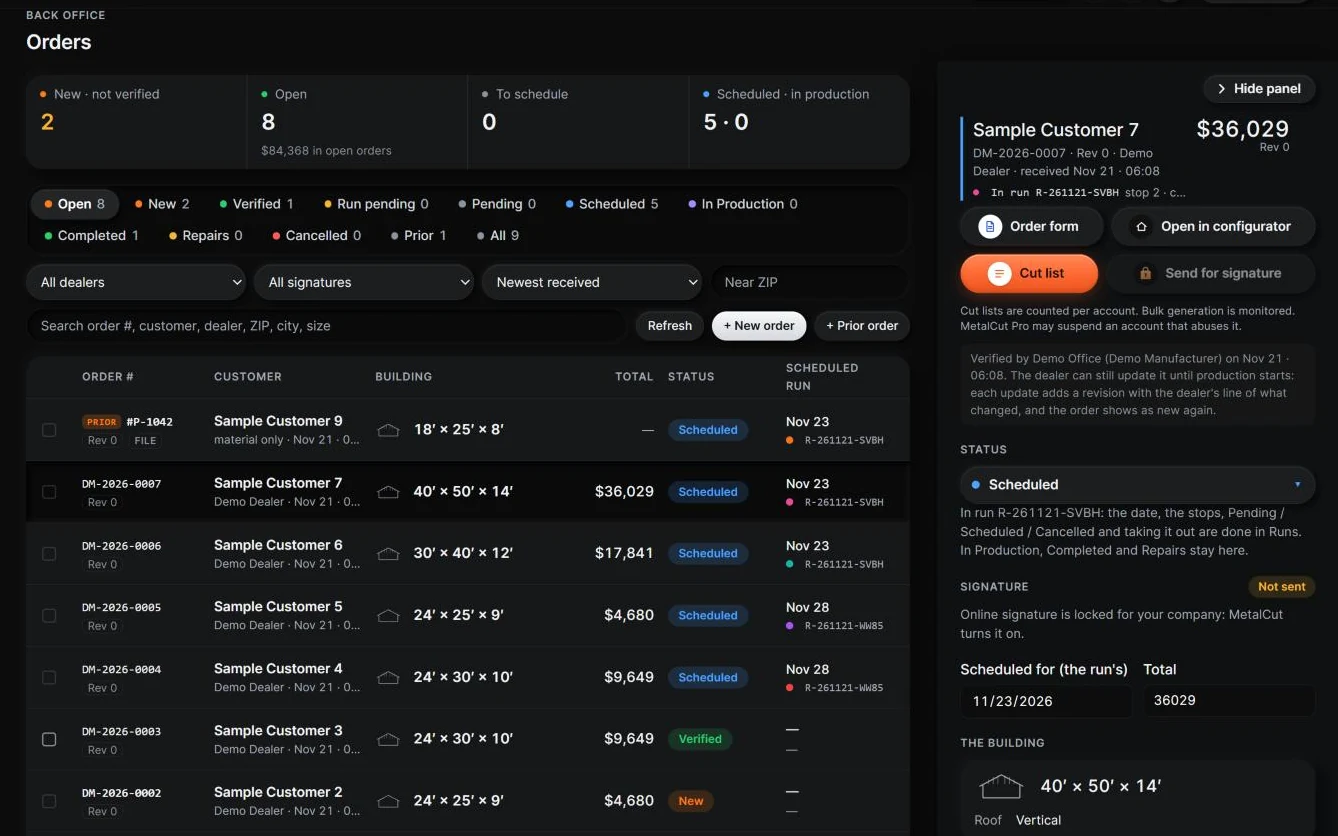
Orders, quotes and this week's deliveries at a glance, with what needs you today.
One list, with the status of each order: New, Verified, Scheduled, In Production, Completed or Repairs.
Type a ZIP in Near ZIP and pick the miles to see the orders close to each other.
Anything the dealer left on a default is marked. Open it in the configurator, change it and update the order.
A sent order keeps the prices of the day it was sent. Your office decides when it takes today's prices.
Stages from New to Won or Lost, the story of each lead, and Make it an order when the customer buys.
Your follow-up calls next to your tasks. Due dates, +1 day, done.
Enter an order from before the app as material only, with a photo or PDF of the original.
Choose what you are told about. Restore what was deleted. Work in Light or Dark.
04 Signed online · For your customers
Send the order form by email. The customer reads it, agrees and draws the signature.
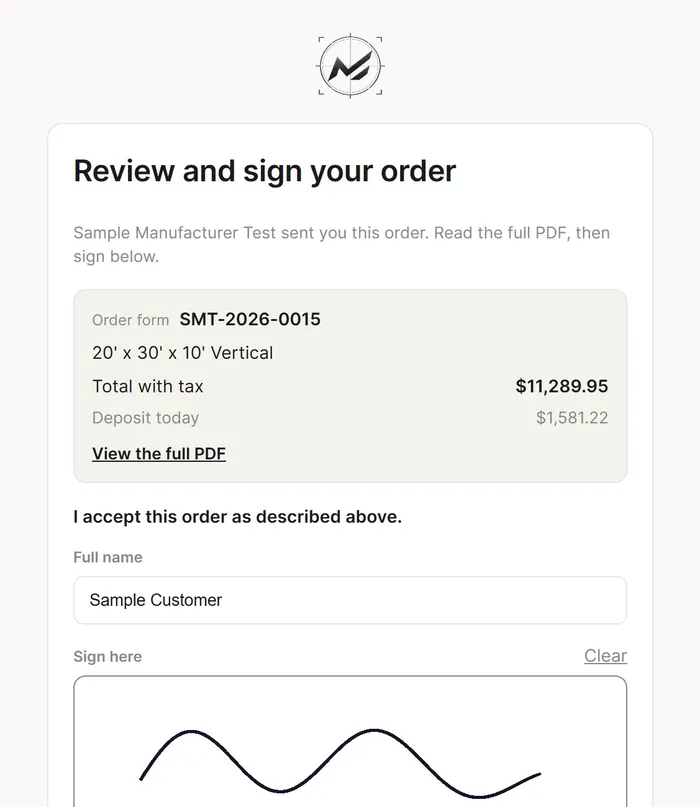
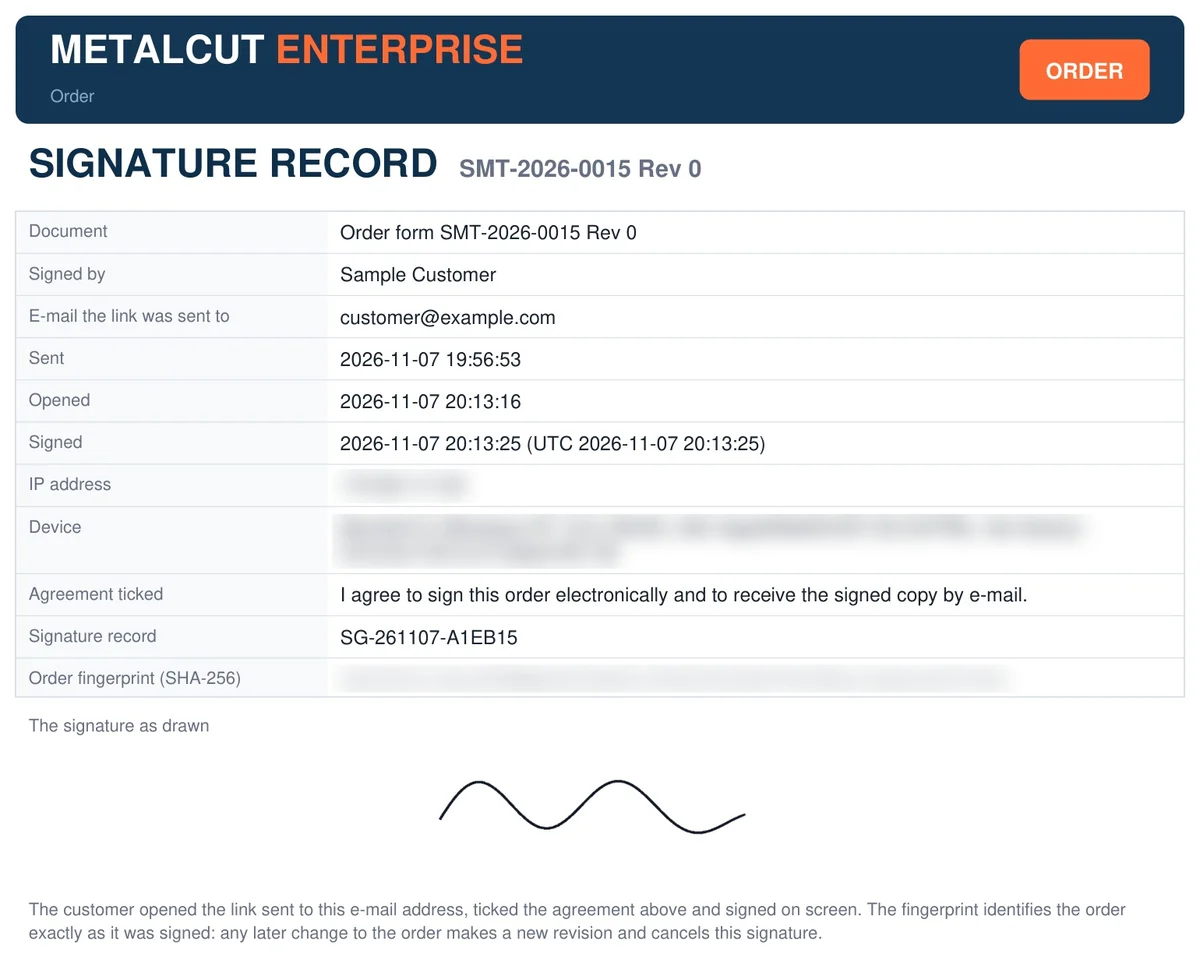
From the order: type the customer's email and an optional message.
The order shows Sent, Opened and Signed.
The signed PDF goes to the customer, your company and the dealer.
Who signed, when and from what device, on the last page.
If the order changes, the old signature is voided and you send the new one.
05 Delivery runs · For your office and your crews
Group the verified orders, give the run to a crew, confirm each stop and set the date.
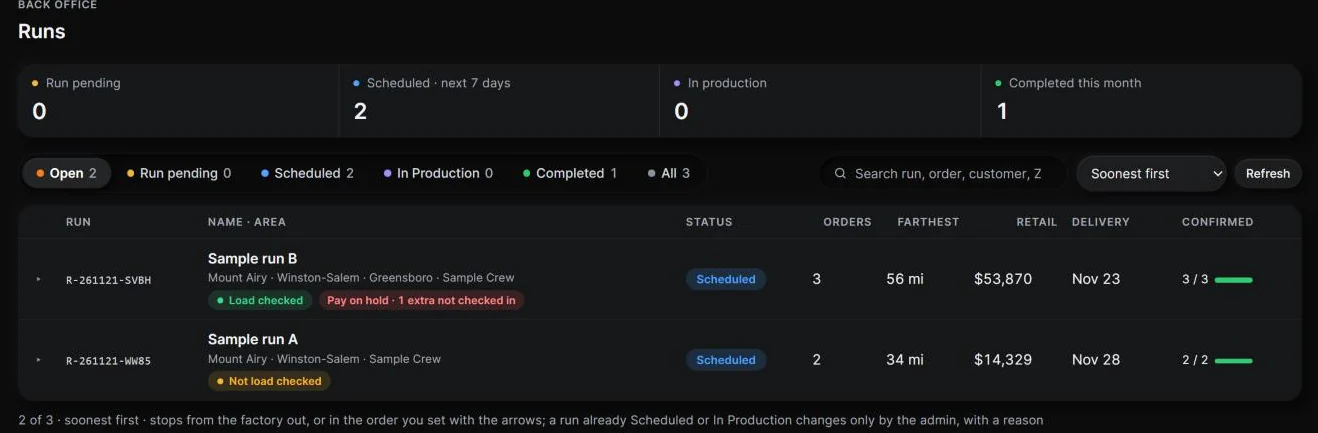
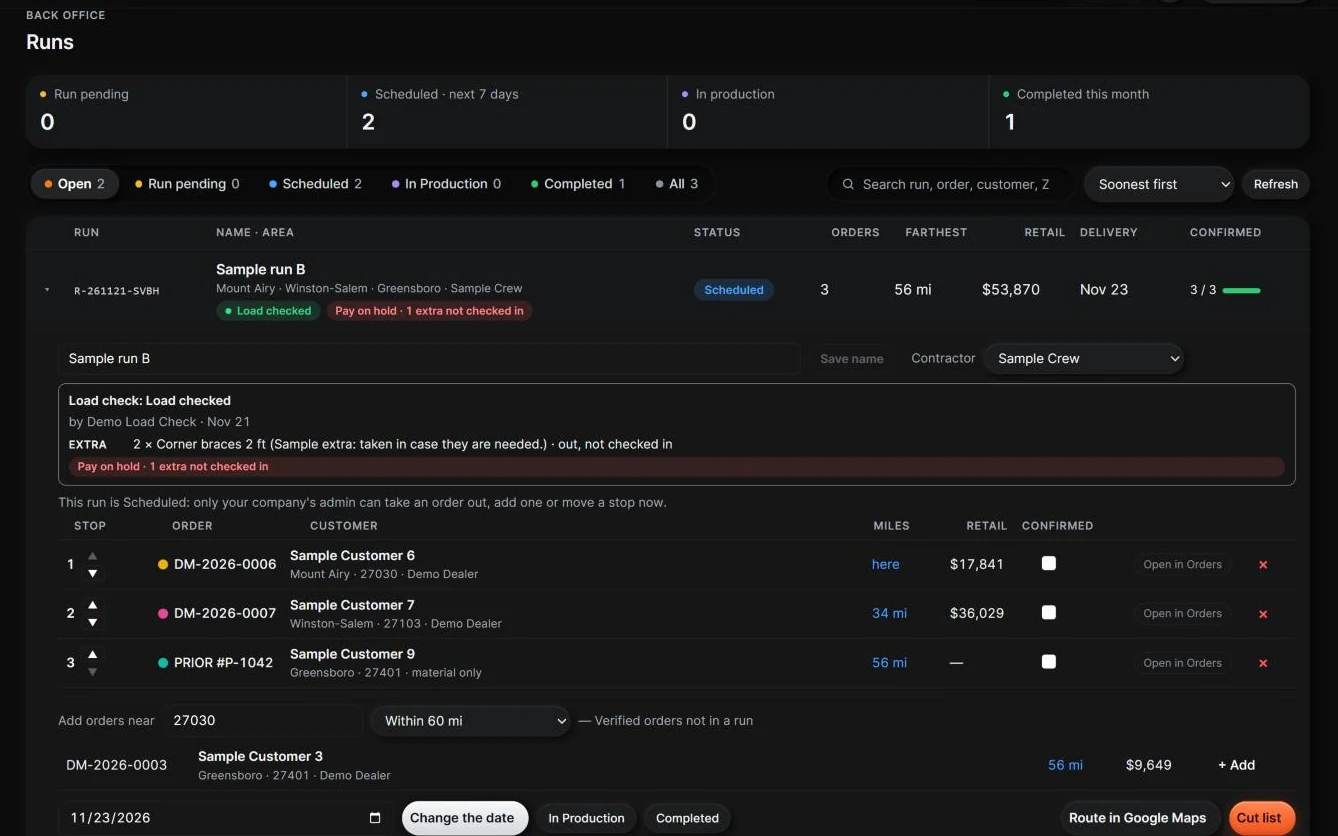
Search by ZIP, tick the orders that go on the same truck, press Create run.
Move the stops up or down, call each customer and mark the stop Confirmed.
Pick the delivery date. The run is scheduled only when every stop is confirmed.
Open the route in Google Maps. Print the cut list of the whole run.
Each crew with its states and its runs. Pause a crew and it keeps its runs but takes no new one.
Only your admin changes a scheduled run, with a reason, and the shop is told.
06 The shop · For your shop
Every order and every revision brings its cut list. Each department sees its own, with no prices.
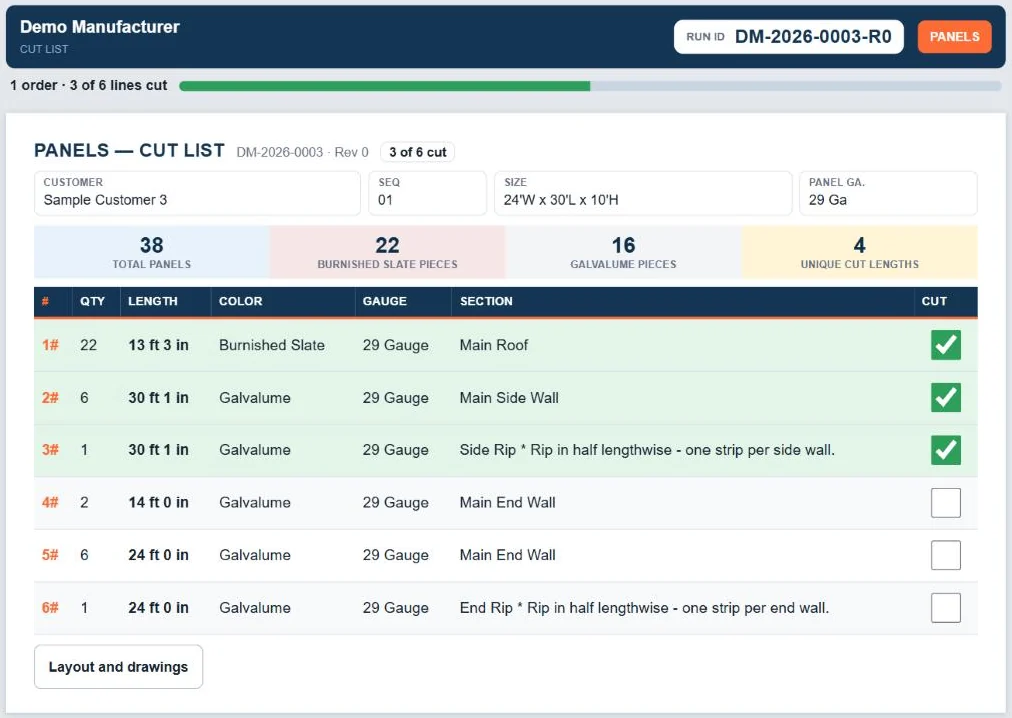
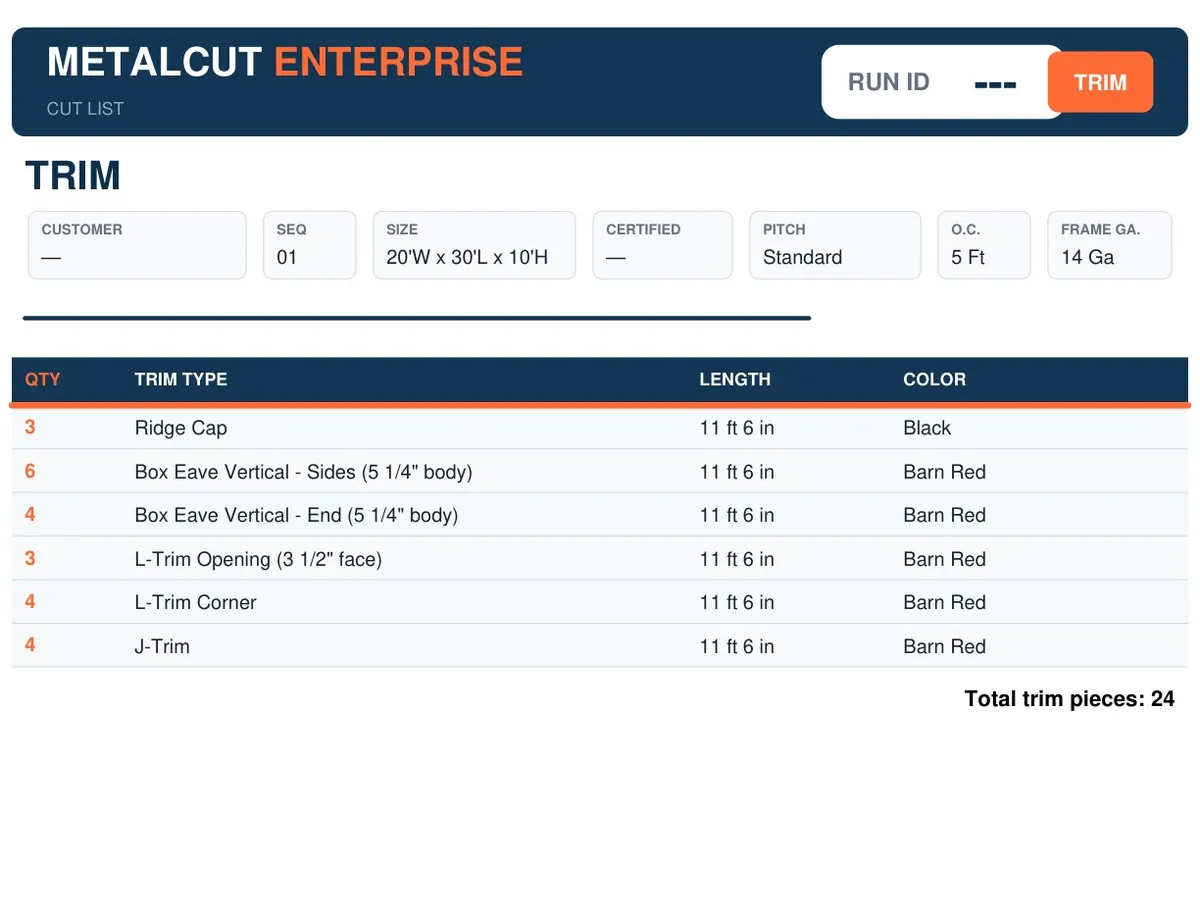
Panels, Trim, Frame and Hardware, each with its own list and its own sign-in.
No prices, deposits or addresses on the shop's screens.
Each line as it is cut, with who and when. The office sees the order marked Panels cut.
When an order changes, every department is told. Only the lines that stayed identical keep their mark.
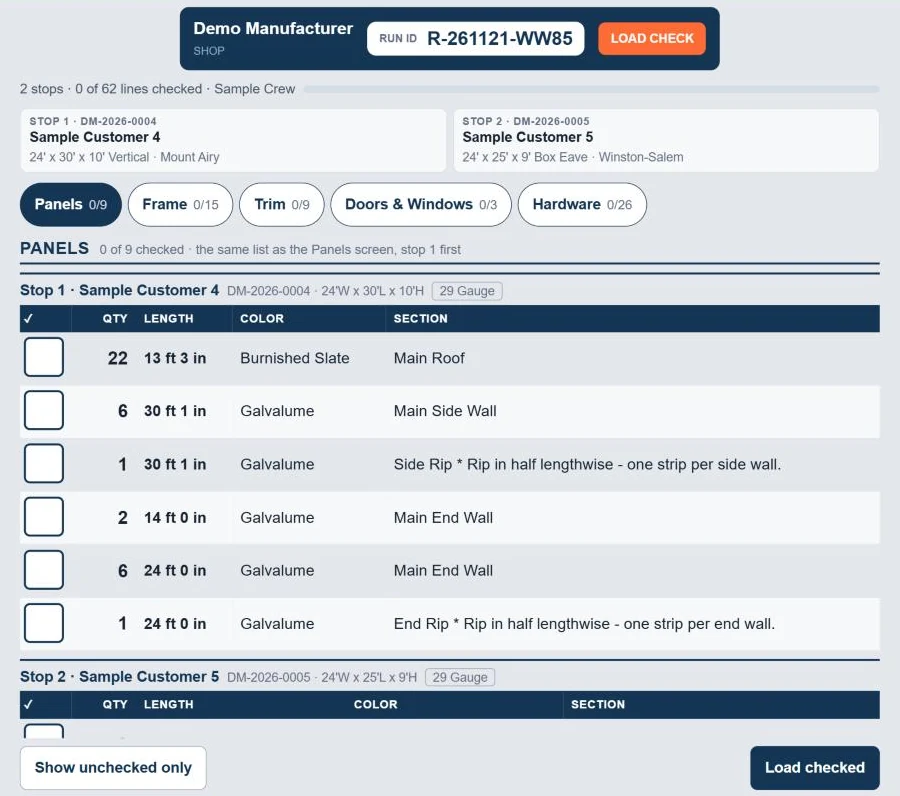
The person who loads the truck has a Load check account. Panels, Frame, Trim, Doors & Windows and Hardware: a check on each line that goes on.
Show unchecked only to see what is left. Load checked lists any blank line before the run goes out.
Anything extra that goes on the truck is added with its quantity and a note.
The extras are checked back in by contractor, and your office sees the Load check inside the run.
Extra material out and not checked in holds the crew's pay until Check-in done.
07 Installers · For your crews
One account per contractor. They see their own runs and nothing else.
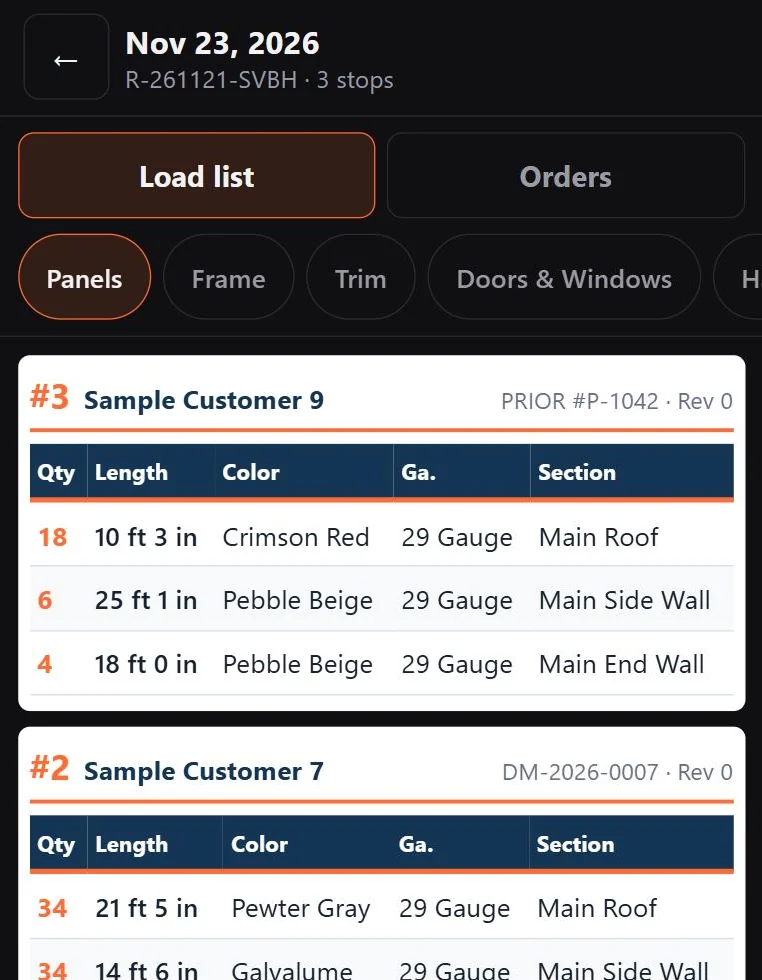
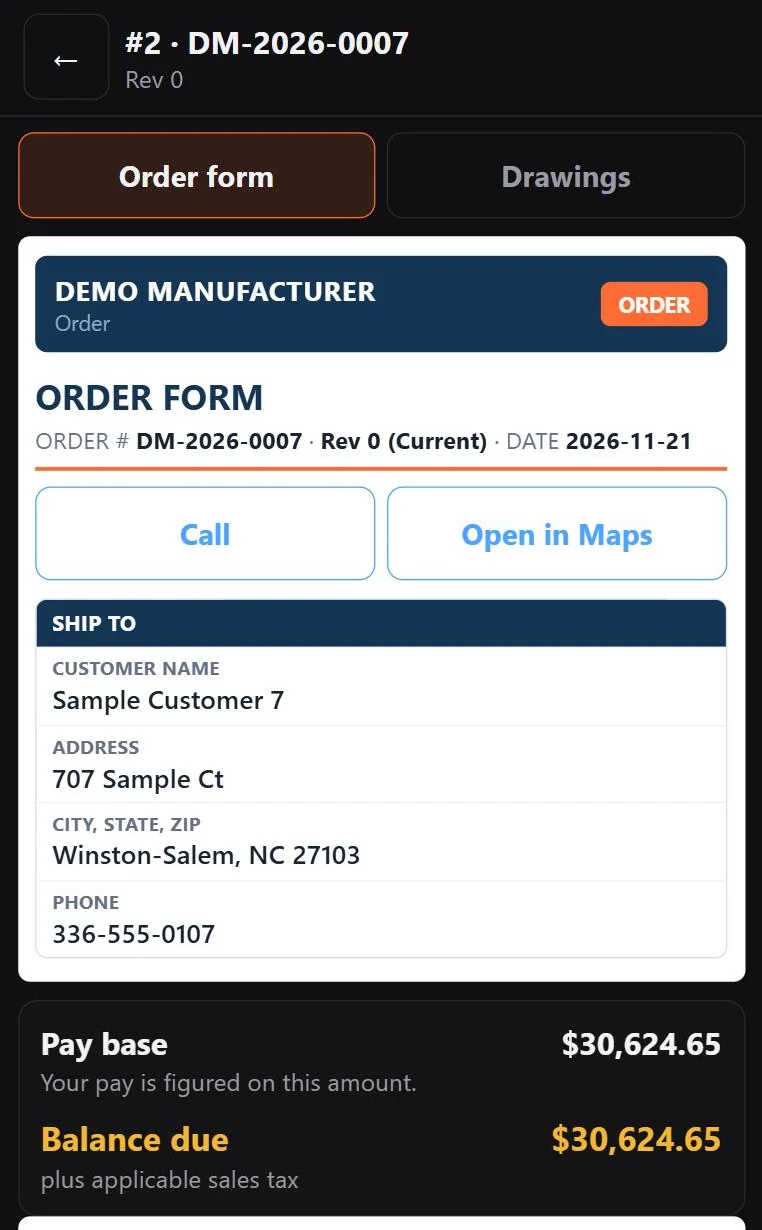
The page goes on the phone's home screen like an app. Nothing to install.
Each open run with its date, its stops and its status.
Panels, Frame, Trim, Doors & Windows, Hardware and the diagrams of the run.
The order form, the drawings, Call and Open in Maps.
Both on each stop, so the crew knows what to collect.
A new revision shows as Updated, so the crew reads the new order form.
Your installers' pay, figured from the same orders and ready when the run goes out.
08 Settings and data · For your company
Turn on what your company needs. Everything else stays out of the way.
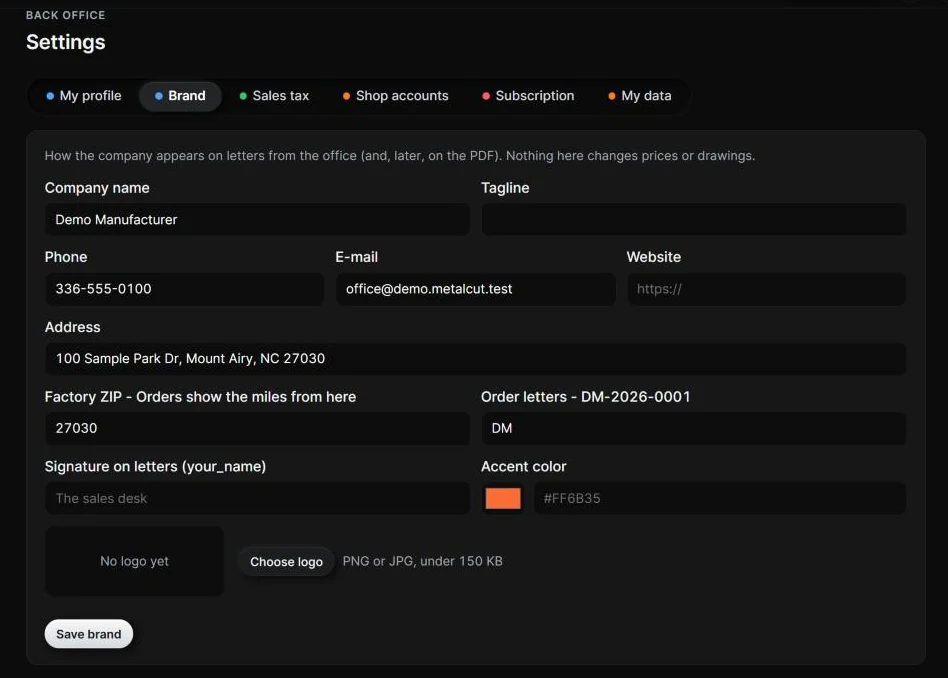
Company name, tagline, logo, accent color, phone, email and address.
Add each state you sell in, with its rate.
Guides inside the app for your office and your dealers.
With an authenticator app and recovery codes.
Encrypted, at a different provider, and separate by company.
Everything in one ZIP, with your password and your two-step code.
Some tools turn on per company, so you start with what you need. Enterprise All-In turns every add-on on.
THE BROCHURE
Thirteen pages on Enterprise: the dealer, the office, the shop and the crew. Turn the pages online, or share the link with your team.
Open the brochure
PLANS
Every plan is monthly. Start a free trial or request access, and you see the price for your version before you pay anything.
No contracts. Cancel anytime with 30 days' notice.Price + cut list + 3D + back office
Enterprise + every add-on
Packs of 5, 10, 15 and 20 on 3D Quote and Enterprise: the bigger the pack, the less each license costs, and you never pay more than the next pack up. 7-day money-back on your first payment.
No. Panels, Trim, Frame and Hardware each see their own list, from the current revision, with no prices, deposits or addresses.
No. They get a link by email, read the order, agree and draw their signature. The signed PDF goes to them, to you and to your dealer.
In a data center, separate by company, with an encrypted copy every night at a different provider. You can download your data, and two-step sign-in is available.
No. It runs in the browser on desktop, tablet or phone. Log in and start.
When your engineer updates your specs, we can update your configuration for you. Simple adjustments are usually on us; larger custom work is quoted before we start.
The configurator opens after login. Request access and we set you up.
YOUR NEXT BUILDING STARTS HERE